
Connect Windsurf to HTFlow
Let Windsurf's Cascade build your site through HTFlow.
- About 5 minutes
- Needs an API token
- Free on every HTFlow plan
Before you start
Create an API token- An HTFlow account — the Free plan is fine.
- Windsurf installed.
Set it up
Create an HTFlow API token in HTFlow → Settings → MCP Access Tokens, and copy it. You'll paste it in a moment.
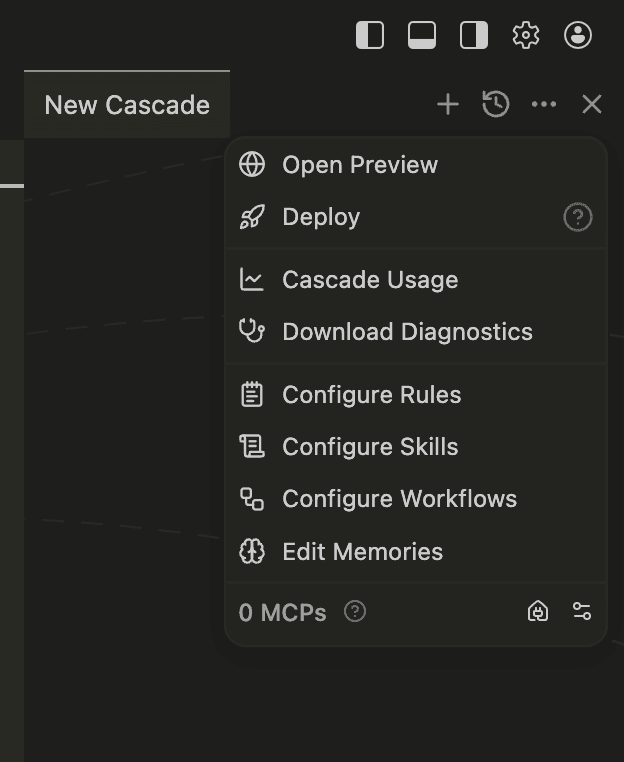
Open Windsurf and start a new Cascade. Click the three-dot menu (···) at the top-right of the Cascade panel, then the settings icon next to "0 MCPs" at the bottom.
The file mcp_config.json opens. Paste the config below and replace YOUR_TOKEN with your HTFlow API token.
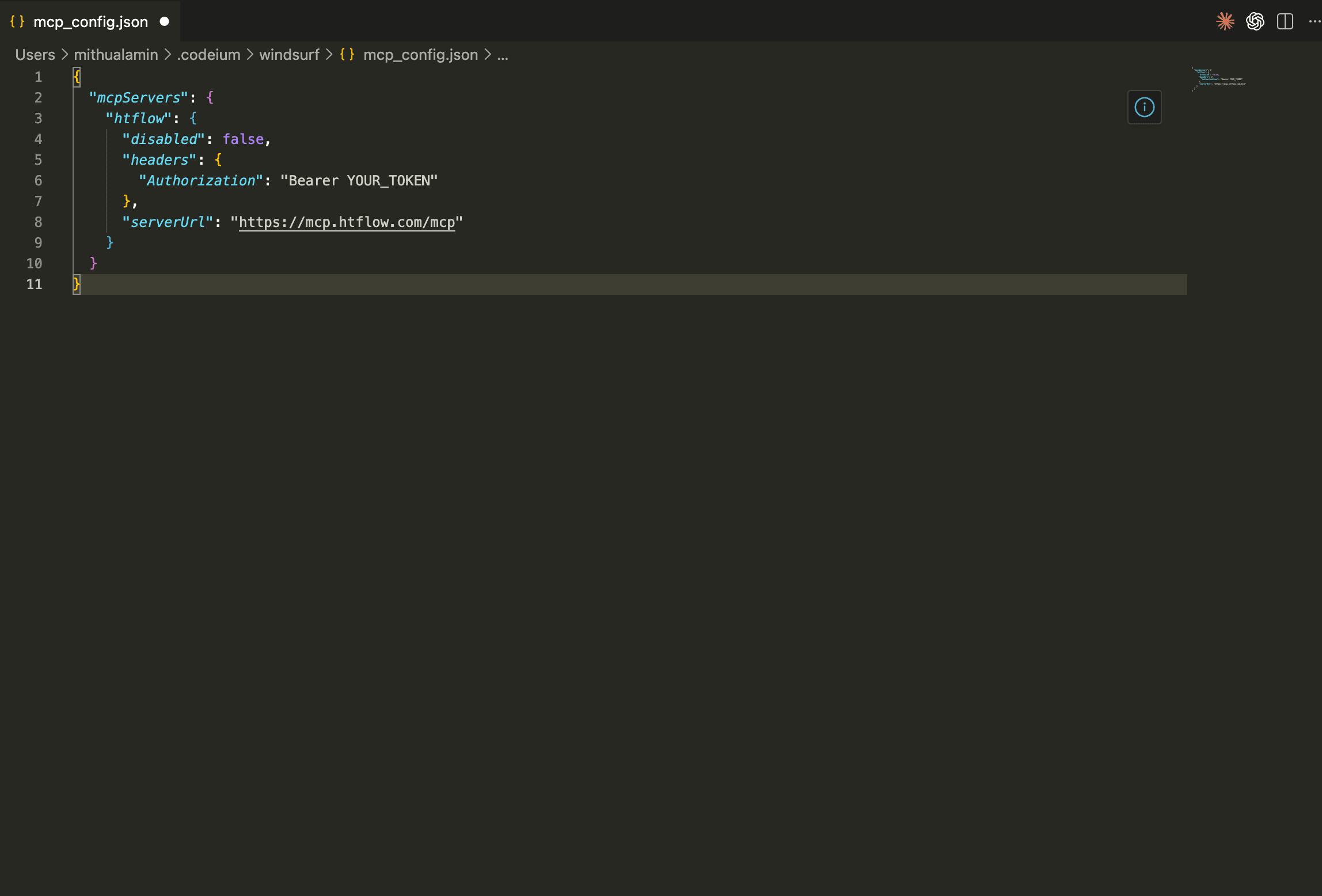
{
  "mcpServers": {
    "htflow": {
      "disabled": false,
      "headers": {
        "Authorization": "Bearer YOUR_TOKEN"
      },
      "serverUrl": "https://mcp.htflow.com/mcp"
    }
  }
}
Save the file and restart Windsurf. The count changes to "1 MCPs" — ask Cascade to build your site through HTFlow.
Windsurf calls the address serverUrl, not url — the config below already does.
Now try it
Ask Windsurf something like this. Click a prompt to copy it.
Your new site shows up in your HTFlow dashboard — open it in the builder, copy it to Webflow, or publish it.
Having trouble?
HTFlow doesn't show up in the list of servers
Check that the file is valid JSON — every quote and comma in place — then save it and fully quit and reopen the editor.
It says unauthorized, or 401
The token is wrong or was deleted. Create a new one in HTFlow → Settings → MCP Access Tokens and paste it again, keeping the word “Bearer ” in front.
The AI can't find my site
Ask it to list your sites first. It only sees the sites in the HTFlow account the token belongs to.